Are you seeking a dependable method to Export Email from Office 365 to PST? There may be a variety of reasons, such as to keep your emails safe as a backup, or to migrate to a different service, or to comply with some legal or company policy. Whatever the reason, exporting your Office 365 mailbox to PST makes it simple to have your emails stored in one file that is safe, accurate, and easily accessible. This article will help you understand how to export Office 365 mailbox to PST, whether it talks about various manual methods or it leads to an automated method using an Office 365 PST export tool.
Why Export Email from Office 365 to PST?
There are several reasons why users want to Export Email from Office 365 to PST. In some instances, businesses may need to export Office 365 mailbox to PST first before deleting inactive accounts, or might want to move some data from Office 365 to some other system. In all instances, it is also useful to save Office 365 emails to PST due to either offline access to the emails or due to compliance archiving.
When you choose to export emails from Office 365 webmail, for example, you create a local copy that can then be accessed and restored at any time through Outlook, in reverse. It helps protect against unintentional data loss, or hacking, or if a subscription expired and the emails are no longer accessible.
Methods to Export Office 365 Mailbox to PST
Method 1: Export PST from Microsoft 365 using eDiscovery
Microsoft has an export mailbox feature built into Microsoft 365 via the eDiscovery feature. You will need to use the Microsoft Purview eDiscovery functionality to export a mailbox from the Office 365 EAC (Exchange Admin Center).
How to export a mailbox from Office 365:
- Log into the Microsoft Purview Compliance Center.
- Select Content Search under eDiscovery.
- Create a new search, and then select the mailboxes you want to export.
- After the search completes, select Export Results.
- Select Export to PST and then download the PST file.
This method allows administrators to export PST from Exchange Online and export archive mailbox Office 365. It is worth noting that it requires a certain level of technical knowledge, an admin login, and can be extensive and time consuming.
Method 2: Export Outlook 365 Emails to PST via Outlook
You can also export Outlook 365 emails to PST using the desktop version of Microsoft Outlook. Here is how to export PST from Outlook 365 web or app:
- Open Outlook and log in with your Office 365 account.
- Select File > Open & Export > Import/Export.
- Choose Export to a file > Outlook data file (.pst).
- Select your mailbox or certain folders to be exported.
- Select a location to save and click Finish.
This method should export Outlook online to PST, and export shared mailbox Office 365 to PST, but it still is manual, slow, and not ideal for larger mailboxes or multiple accounts.
The Best Way – Use The Professional Tool Direct Office 365 to PST Tool
If you want a method that is simple and quick to Export Email from Office 365 to PST format, then use a Reliable Office 365 Email Backup Software. The Office 365 PST export tool will automate the process with a complete and error-free export with no administrative accounts or complicated technical instructions needed.
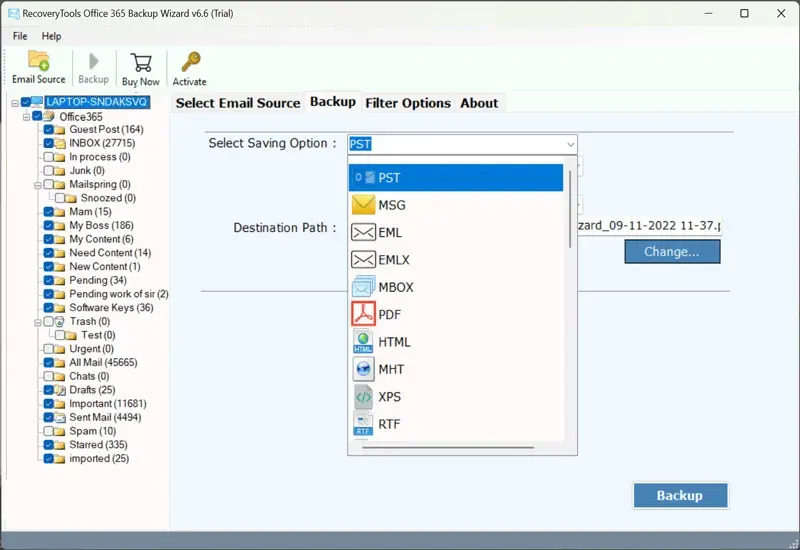
Key Benefits of the Office 365 to PST Export Tool:
Step by Step Procedure to Export Office 365 Data to Outlook PST
- Download and install the Office 365 Backup Tool on your desktop.
- Log in with your Microsoft 365 credentials.
- Select PST as the saving format option.
- Choose mailboxes or folders that you want to backup.
- Click on Start Backup to export PST from Microsoft 365 immediately.
The Office 365 to PST Export Tool allows you to perform a safe and expeditious export for every user whether you need to export shared mailbox Office 365 to PST, export Outlook 365 mailbox or download emails from Office 365 for safe keeping.
Why Choose a Professional Tool?
Exporting Emails from Office 365 to PST manually is complicated because:
- It requires complex permissions, is slow and may cause data corruption.
- However, the Office 365 PST Export Tool follows a
- 100% accurate and reliable export.
- No size limitations for large mailboxes.
- Option to export PST from Outlook 365 web and local apps.
- A user-friendly program for beginners and experts.
- Assistance to export mailbox Office 365 EAC, archive and shared mailboxes.
You can use the Free Demo Export Office 365 mailbox to PST tool for several items to test user experience and usability to see if you want to purchase the full version.
Final Words
The best and safest method to Export Email from Office 365 to PST is to use a trustworthy and reputable Office 365 to PST export tool. While Microsoft’s manual options can assist, they are typically time-consuming to do, and not always an option for those without technical knowledge. If you want to export an Office 365 mailbox to PST, export a PST from Exchange Online, or export Office 365 data to Outlook, the Office 365 Backup Tool is your best friend. It actually allows you to export Office 365 emails to Outlook PST, backup Office 365 emails to PST, and restore them when you need to.